Godot UI with AI: a main menu and settings screen that don't clip (tested)
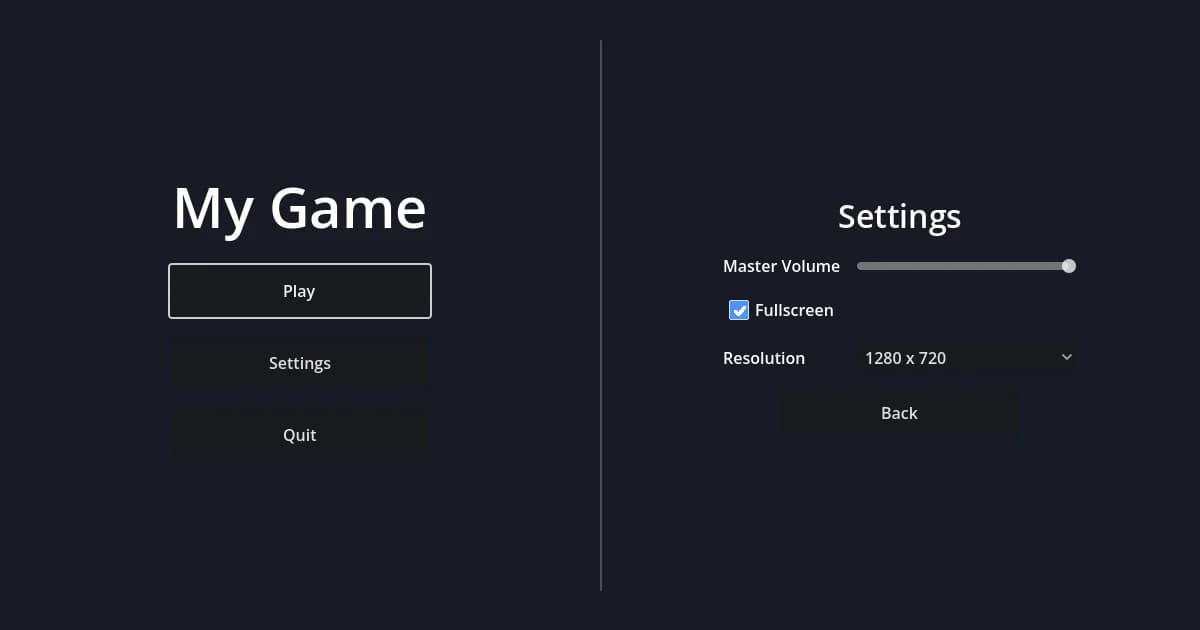
Can an AI build Godot UI that holds together when the window changes size? We asked Ziva, an AI agent that runs inside the Godot editor, for a main menu and a settings screen made of Control nodes. In 3 minutes 58 seconds it built both scenes, ran the game, clicked Settings and Back, and checked the layout at five window sizes. Nothing was clipped. It also missed something: the Fullscreen checkbox was nearly invisible when unchecked, and Ziva reported "all controls showing". A second prompt asking it to look closely caught and fixed it.
Layout is where people say AI help breaks down. On r/ClaudeAI one developer wrote that "Claude does not do a very good job in creating and modifying scenes for Godot … Elements are often partially clipped" (thread). On r/aigamedev another wrote, "I can burn through Claude's usage limit in a single session just trying to fix layouts and styling" (thread). And without any AI involved, a Godot forum post says "Making UIs almost takes up 80% of my time" (thread).
Ziva.sh makes Ziva and wrote this test. We ran it on 10 November 2026 with Godot 4.7.2 on Linux, using a development build of Ziva on Ziva Smart, the default model, with auto-approve on. It is one project and one run, so treat it as an example, not a benchmark. Below are the layout Ziva built (you can copy it by hand), how it checked the result, the miss, and a checklist.
The prompt
A fresh project with no UI in it. The prompt, word for word:
Make a main menu for my game in res://ui_demo/: the game title and Play, Settings and Quit buttons, centered. Settings should open a settings screen with a Master volume slider, a Fullscreen checkbox, a Resolution dropdown (1280x720 and 1920x1080) and a Back button that returns to the menu. Nothing should be clipped or overlapping, and it should still look right if the window is resized. Check it with screenshots and click through Settings and Back to make sure they work.The layout Ziva built
Ziva wrote two scripts and two scenes in res://ui_demo/. The main menu:
MainMenu (Control, Full Rect anchors, main_menu.gd)
├── Background (ColorRect, Full Rect)
├── MenuPanel (CenterContainer, Full Rect)
│   └── MenuBox (VBoxContainer, separation 20)
│       ├── Title (Label "My Game", font size 56)
│       ├── PlayButton (Button, custom_minimum_size 260 x 52)
│       ├── SettingsButton (Button, custom_minimum_size 260 x 52)
│       └── QuitButton (Button, custom_minimum_size 260 x 52)
└── SettingsScreen (instance of settings_screen.tscn, hidden)
The settings screen is its own scene with its own opaque background, instanced into the menu and hidden until needed:
SettingsScreen (Control, Full Rect anchors, settings_screen.gd)
├── Background (ColorRect, Full Rect)
└── Center (CenterContainer, Full Rect)
    └── Margin (MarginContainer, 24 px margins)
        └── VBox (VBoxContainer, separation 16)
            ├── Title (Label "Settings")
            ├── VolumeRow (HBoxContainer)
            │   ├── Label "Master Volume" (Expand)
            │   └── VolumeSlider (HSlider 0 to 1, min width 220)
            ├── FullscreenCheck (CheckBox)
            ├── ResolutionRow (HBoxContainer)
            │   ├── Label "Resolution" (Expand)
            │   └── ResolutionOption (OptionButton, min width 220)
            └── BackButton (Button, 240 x 48, Shrink Center)
Settings hides MenuPanel and shows the settings screen; the settings screen emits a back_requested signal, and the menu shows itself again and gives Play keyboard focus. Quit calls get_tree().quit(). Play only prints a placeholder message, because the project had no game scene to load, and Ziva said so. The settings handlers, as Ziva wrote them:
func _on_volume_changed(value: float) -> void:
	var db: float = linear_to_db(value) if value > 0.0 else -80.0
	AudioServer.set_bus_volume_db(AudioServer.get_bus_index("Master"), db)

func _on_fullscreen_toggled(toggled_on: bool) -> void:
	var mode: DisplayServer.WindowMode = DisplayServer.WINDOW_MODE_FULLSCREEN if toggled_on else DisplayServer.WINDOW_MODE_WINDOWED
	DisplayServer.window_set_mode(mode)

func _on_resolution_selected(index: int) -> void:
	if index < 0 or index >= RESOLUTIONS.size():
		return
	DisplayServer.window_set_size(RESOLUTIONS[index])
	_center_window()
The settings are not saved between launches. The prompt did not ask for that and Ziva did not add it. If you need it, write the values to a ConfigFile in user://.
Why this layout doesn't clip
Most clipped Godot UI comes from controls placed by hand. A control's offsets are pixel distances from an anchor point, by default the parent's top-left corner (Size and anchors). A button placed at x = 900 in a 1152-pixel window sits outside a 640-pixel one.
The layout above has no hand-placed child positions:
- The root fills the window.
MainMenu,BackgroundandMenuPaneluse the Full Rect anchor preset (anchors 0 to 1 on both axes), so they always match the window. - A CenterContainer does the centering. It "automatically keeps all of its child controls centered within it at their minimum size" (Using Containers).
- Box containers stack the rows. Inside a container, "all children Control nodes give up their own positioning ability" (same page), so a resize re-lays out everything.
- Minimum sizes set the size. The buttons get their size from
custom_minimum_size, and the labels in each settings row have Expand set so the label and the 220-pixel slider or dropdown share the row without overlapping.
One limit: a container never shrinks its children below their minimum size. Ziva's menu box is 260 x 293 pixels, so in a window shorter than 293 pixels it no longer fits. If your game must work in very small windows, or should scale the UI up on big screens, set Project Settings > Display > Window > Stretch > Mode to canvas_items (Multiple resolutions). Ziva's project kept the default, Disabled, so on a 1920 x 1080 window the menu stays the same pixel size in the middle of a larger screen.
How Ziva checked it
Ziva's run_scene tool runs a scene from the editor, sends input and returns a screenshot. Ziva used it three times:
- Run the menu and look at the screenshot. It also fixed an integer-division warning from the run's output.
- Run again and click the button labelled Settings. The screenshot showed the settings screen, and Ziva wrote: "Settings screen opens with all controls showing, nothing clipped."
- Run again, clicking Settings and then Back. The screenshot showed the menu with Play focused.
run_scene runs the game at the project's window size (here Godot's default, 1152 x 648) and can't resize it, so screenshots alone could not show a resize. Ziva noted that and wrote a GDScript test that loaded the menu at several window sizes and checked that the menu box and the settings box stayed inside the window. Its first measurement said neither fit at 1152 x 648. Ziva decided the layout had not been applied on the first frame and reran 1152 x 648 with a warm-up, plus 800 x 450 and 3840 x 2160. Across both runs it passed at 640 x 360, 800 x 450, 1152 x 648, 1920 x 1080 and 3840 x 2160.
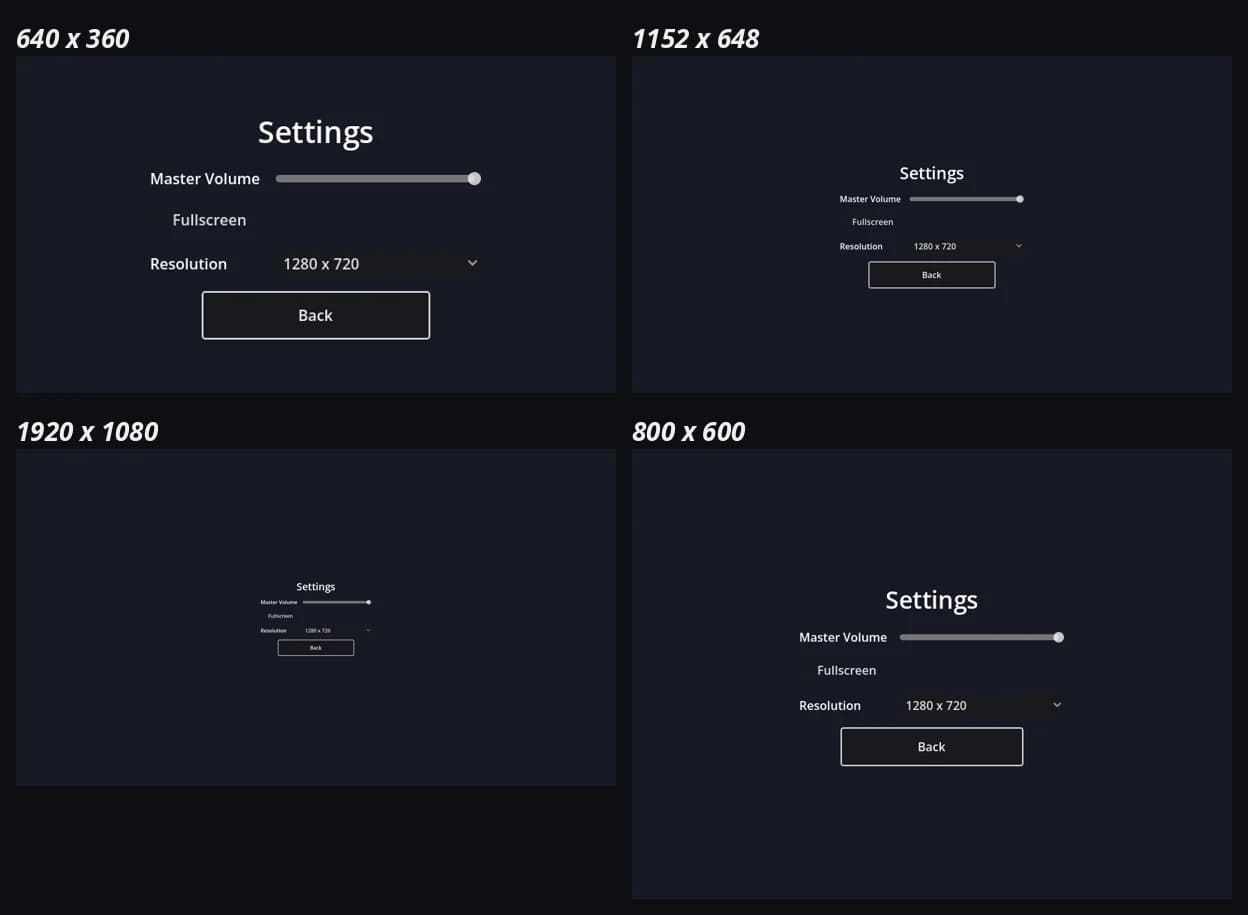
We then ran our own check on a copy of the project: at 1152 x 648, 640 x 360, 1920 x 1080 and 800 x 600, no visible Control was outside the window or smaller than its content, Settings opened, and Back returned to the menu.
The miss: an invisible checkbox
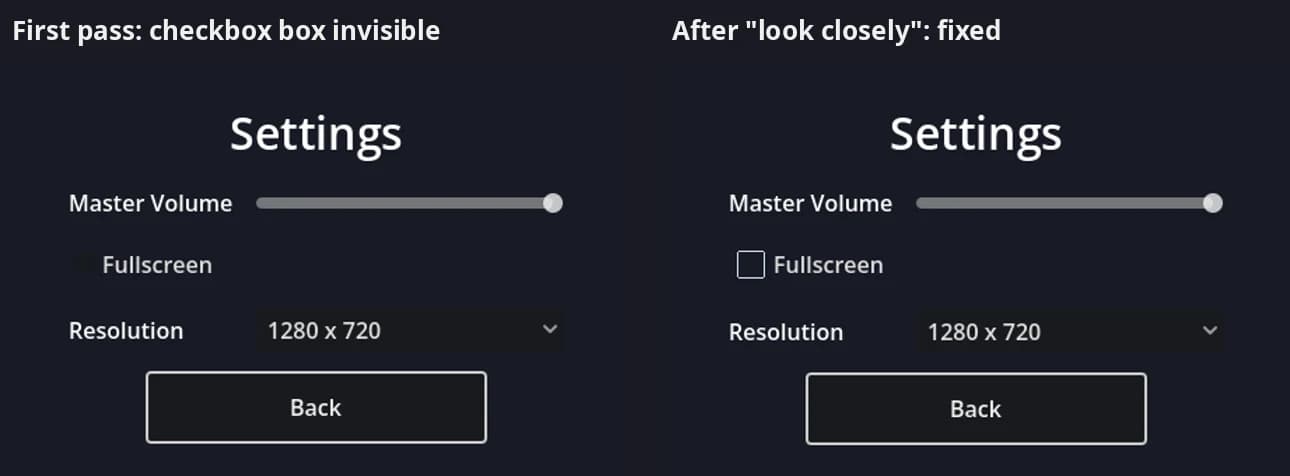
Both checks passed a settings screen with a problem. With Godot's default theme the unchecked CheckBox box is dark, and on Ziva's dark background it almost disappeared, so "Fullscreen" looked like a plain label. Ziva's own screenshot showed it, and Ziva still reported all controls showing. Our geometry check could not see it either: the checkbox was the right size and inside the window.
We sent a second prompt in the same chat:
Look closely at the settings screen in a screenshot. Is every control easy to see and use? Fix anything that isn't, then show me the settings screen again.This time Ziva opened its earlier screenshot and said the Fullscreen checkbox "looks like plain centered text with no visible indicator". It built a throwaway scene with a checked and an unchecked CheckBox on the same background, ran it, and confirmed that only the checked one showed a box. Then it added code to settings_screen.gd that draws its own checked and unchecked icons into a Theme on the checkbox, and ran the menu twice more, clicking Settings and then Fullscreen to see both states. Our check afterwards passed at the same four sizes, with the checkbox outline visible.
Two things to know about that fix. Drawing icons pixel by pixel in a script works, but about 60 lines of code for one checkbox is a lot; in your own project a Theme resource with checkbox icons, set on the root Control, does the same for every CheckBox below it, because themes apply to a control and its children (GUI skinning). And Ziva left the throwaway scene, ui_demo/_tmp_check.tscn, in the project. It said so in its reply: it "didn't delete it since removal wasn't requested" and offered to remove it.
Time and cost
- First prompt: 3 min 58 s, $0.033 of Ziva usage on Ziva Smart, the default model.
- Follow-up prompt: 4 min 6 s, $0.036.
What this test does not show
One simple UI, the default theme, one run. We did not check that Fullscreen and Resolution change a real desktop window, or keyboard and gamepad navigation between the controls. Ziva's run window is embedded in the editor and only supports windowed mode, as Ziva pointed out. A larger UI, a custom theme or a different model may give different results.
Checklist: a Godot menu and settings screen that don't clip
Whether you build it yourself or ask an AI, these steps follow the layout above:
- Add a root
Controland choose Full Rect from the anchor preset menu in the toolbar above the viewport. - Add a
ColorRectbackground, also Full Rect. - Add a
CenterContainer(Full Rect) and aVBoxContainerinside it. Put the title and buttons in the VBoxContainer. - Size buttons with Custom Minimum Size instead of dragging their handles.
- Make the settings screen its own scene with its own background. Instance it in the menu, hide it, and show or hide it from the menu script. Use HBoxContainers for label and control rows, with Expand on the labels.
- Check several window sizes. Run the scene and resize the window, or run a script like the one below.
- Look at a screenshot of every screen on its real background, in every state (checked and unchecked, focused and not). A layout check can't tell you a control is hard to see.
Here is a short size check, based on what Ziva did. Save it in the project folder and run godot --headless --path . --script check_layout.gd:
extends SceneTree

func _initialize() -> void:
	var menu: Control = load("res://ui_demo/main_menu.tscn").instantiate()
	root.add_child(menu)
	# The window applies its own size on the first frame, so measuring before this reads a stale layout.
	await process_frame
	for size: Vector2i in [Vector2i(640, 360), Vector2i(1152, 648), Vector2i(1920, 1080), Vector2i(400, 240)]:
		root.size = size
		for i in 4:
			await process_frame
		var box: Rect2 = menu.get_node("MenuPanel/MenuBox").get_global_rect()
		print(size, " menu fits: ", Rect2(Vector2.ZERO, Vector2(size)).encloses(box))
	quit()
On Ziva's menu it prints true for the first three sizes and false for 400 x 240, the minimum-size limit described above.
To try Ziva on your own UI, see installation. We ran the same kind of test on a broken shader and on collision bugs.